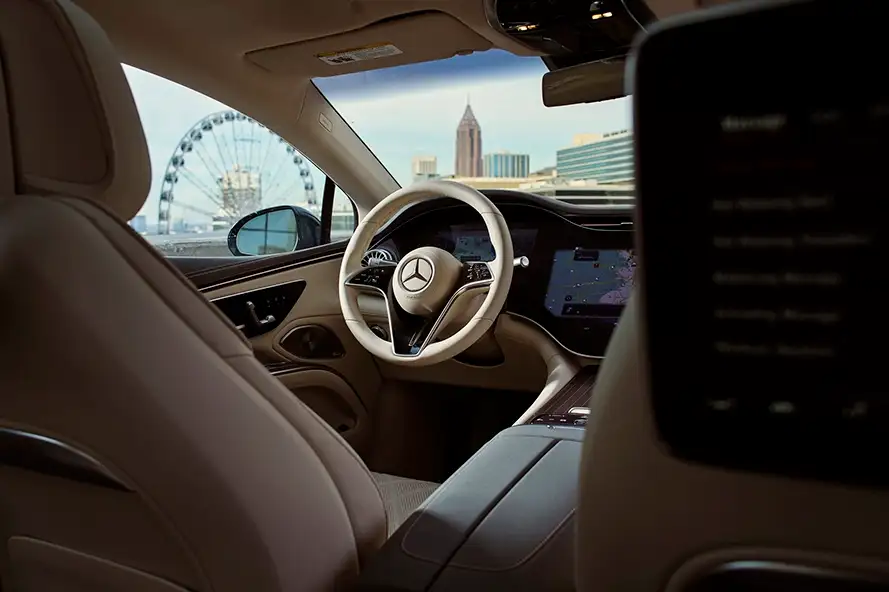
How Do I Connect My Phone to Mercedes-Benz MBUX?
Connecting your phone to Mercedes-Benz MBUX takes just a minute. Use the quick steps below for Bluetooth® calling and audio, Apple CarPlay, and Android Auto. If you prefer hands-on help, visit our showroom or schedule an appointment and our team will set it up for you.
Pair Your Phone to MBUX with Bluetooth®
- On your phone, open Settings and turn on Bluetooth®.
- On the MBUX screen, select Phone then Connect Device or open Settings and choose Bluetooth®.
- Select your phone name when it appears on the MBUX screen. Confirm the pairing code on both devices.
- Allow contacts, messages, and media access if prompted. This enables calling, texts, and audio streaming.
- Set your phone as the priority device if more than one phone is paired.
Use Apple CarPlay with MBUX
Apple CarPlay lets you access maps, messages, music, and Siri on the MBUX display.
- Wired CarPlay: Plug your iPhone into the vehicle’s USB data port using a compatible cable. Accept CarPlay prompts on the MBUX screen and your iPhone.
- Wireless CarPlay: If your model supports wireless CarPlay, enable Bluetooth® and Wi-Fi on your iPhone, start a new CarPlay connection from Settings > Apple CarPlay in MBUX, and follow the prompts.
- To return to MBUX, select the Mercedes-Benz star icon on the screen.
Use Android Auto with MBUX
Android Auto brings Google Maps, calls, messages, and apps to your MBUX display.
- Wired Android Auto: Connect your Android phone to the USB data port. Accept prompts on the MBUX screen and your phone.
- Wireless Android Auto: If available on your model, turn on Bluetooth® and Wi-Fi on your phone, open Settings > Android Auto in MBUX, and follow the prompts.
- Use the steering wheel voice button or “Hey Google” for hands-free control.
Voice Control Tips
- Say “Hey Mercedes” followed by your request. Example: “Hey Mercedes, navigate to 1 Star Drive.”
- For CarPlay or Android Auto, use Siri or Google Assistant for app-specific requests.
Troubleshooting Connection Issues
- Cannot find the vehicle or phone: Toggle Bluetooth® off and on, then restart pairing from both devices.
- CarPlay or Android Auto will not start: Use a high-quality data cable for wired connections, verify that CarPlay or Android Auto is enabled on your phone, and confirm permissions on the MBUX screen.
- Drops or glitches: Remove old pairings in MBUX and on your phone, then set up a fresh connection. Update your phone’s OS and check for vehicle software updates during service.
- Multiple phones connected: In MBUX, set your device as the primary phone and disconnect any devices you are not using.
Mercedes me connect and MBUX
Many models support Mercedes me connect features such as remote start, vehicle status, and charging management for Mercedes-EQ. App setup is separate from Bluetooth® and CarPlay or Android Auto. We can help you install and activate the app during your visit.
In-Person Setup and Support
Prefer a walkthrough with a specialist. Visit us at 1 Star Dr. Laguna Niguel, CA 92677, or book a setup appointment. We are happy to pair your phone, personalize profiles, and review voice commands.
Serving Drivers Across South Orange County
We assist drivers from Laguna Niguel, Dana Point, San Clemente, Lake Elsinore, Ladera Ranch, and Aliso Viejo. Call our team at (949) 347-3700.
FAQs: Phone Connection and MBUX
How do I pair my phone to MBUX for the first time.
Enable Bluetooth® on your phone, open Phone > Connect Device on MBUX, select your phone, confirm the pairing code, and allow contacts and media.
Does my Mercedes-Benz support wireless Apple CarPlay or Android Auto.
Availability varies by model year and equipment. If you do not see a wireless option in MBUX, use a USB data cable. Our team can confirm your vehicle’s capability.
Why can’t my phone reconnect automatically.
Make sure Bluetooth® is on, your phone is set as the primary device in MBUX, and previously paired devices are removed if not used. Check for software updates and try re-pairing.
Can I use Bluetooth® audio and CarPlay or Android Auto at the same time.
When CarPlay or Android Auto is active, audio playback typically routes through that system. Switch sources in MBUX if you prefer standard Bluetooth® audio.
Will MBUX updates change the connection steps.
Updates can improve stability and features. The basic pairing flow is similar, but on-screen wording may differ slightly after an update. We can check for updates during your service visit.
Features and compatibility vary by model year, trim, equipment, and phone software version. Always follow on-screen prompts in your vehicle and your device settings.